

generateContent API. This guide covers:
- Text-to-image generation
- Image-to-image editing
- Multi-image composition
- Saving generated images
gemini-3.1-flash-image for Nano Banana 2. The API reference also includes separate Nano Banana Pro and Lite examples.
- Base URL:
https://api.runbridge.ai - Install the SDK:
pip install google-genai(Python) ornpm install @google/genai(Node.js)
Setup
Initialize the client with RunBridge AI’s base URL:Text-to-image generation
Generate an image from a text prompt and save it to a file.candidates[0].content.parts, which can contain text and/or image parts. Gemini image models can also return intermediate thought parts before the final image, especially when you request both text and images or explicitly enable thinking output. Do not save the first inlineData blindly; skip parts where thought is true, then save the last remaining image part. Read its mimeType and use the matching file extension: .jpg for image/jpeg, .png for image/png, or .webp for image/webp. The examples write the returned bytes directly without converting the image format.
Typical response with only the final image:
Image-to-image generation
Save a JPEG input assource.jpg in your working directory, then transform it with a text prompt. The Shell example prepares the Base64 JSON body locally before sending one API request.
- The Python SDK accepts
PIL.Imageobjects directly — no manual Base64 encoding needed. - Do not include the
data:image/jpeg;base64,prefix when passing raw Base64 strings.
Multi-image composition
Generate a new image from multiple input images. RunBridge AI supports two approaches:Method 1: Single collage image
Combine the source images intocollage.jpg in your working directory, then describe the desired output.
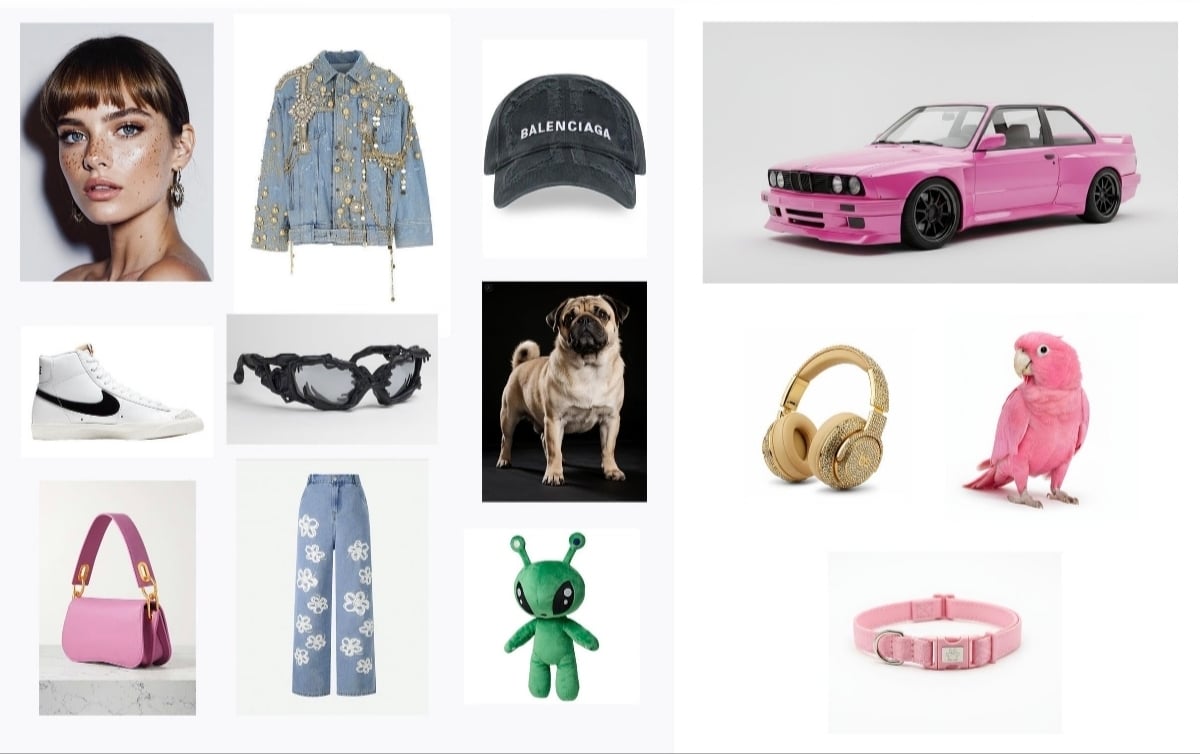
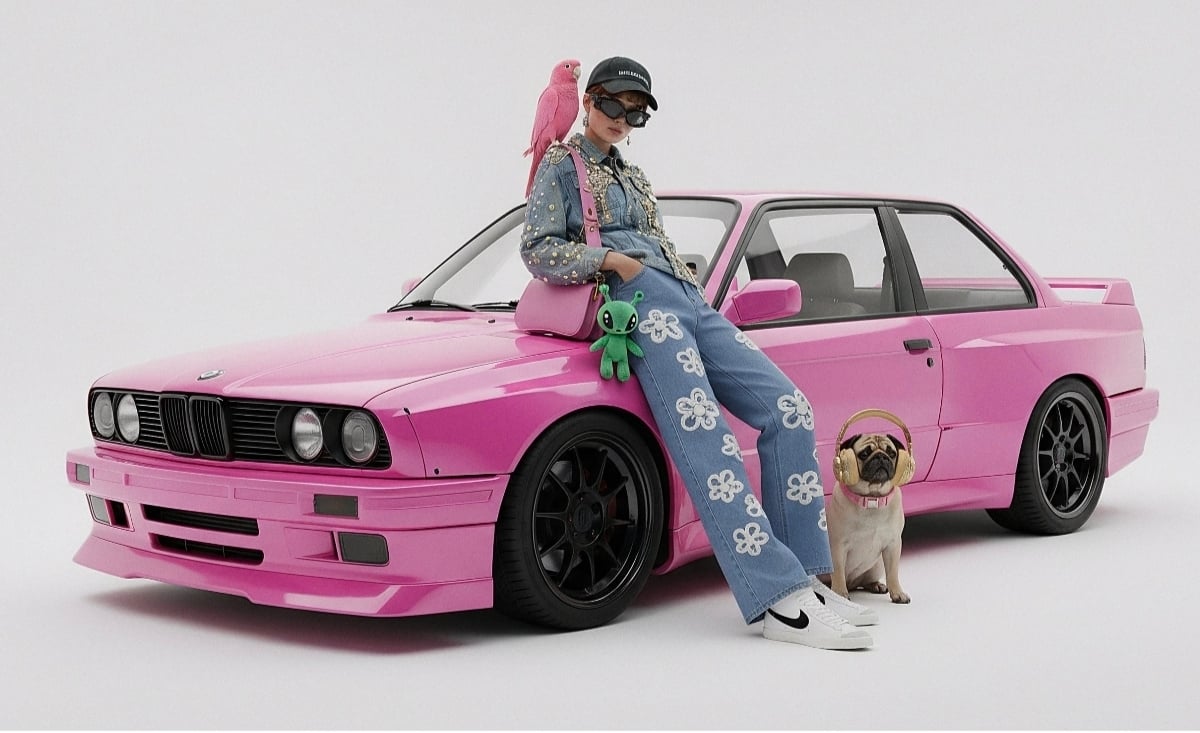
Method 2: Multiple separate images (up to 14)
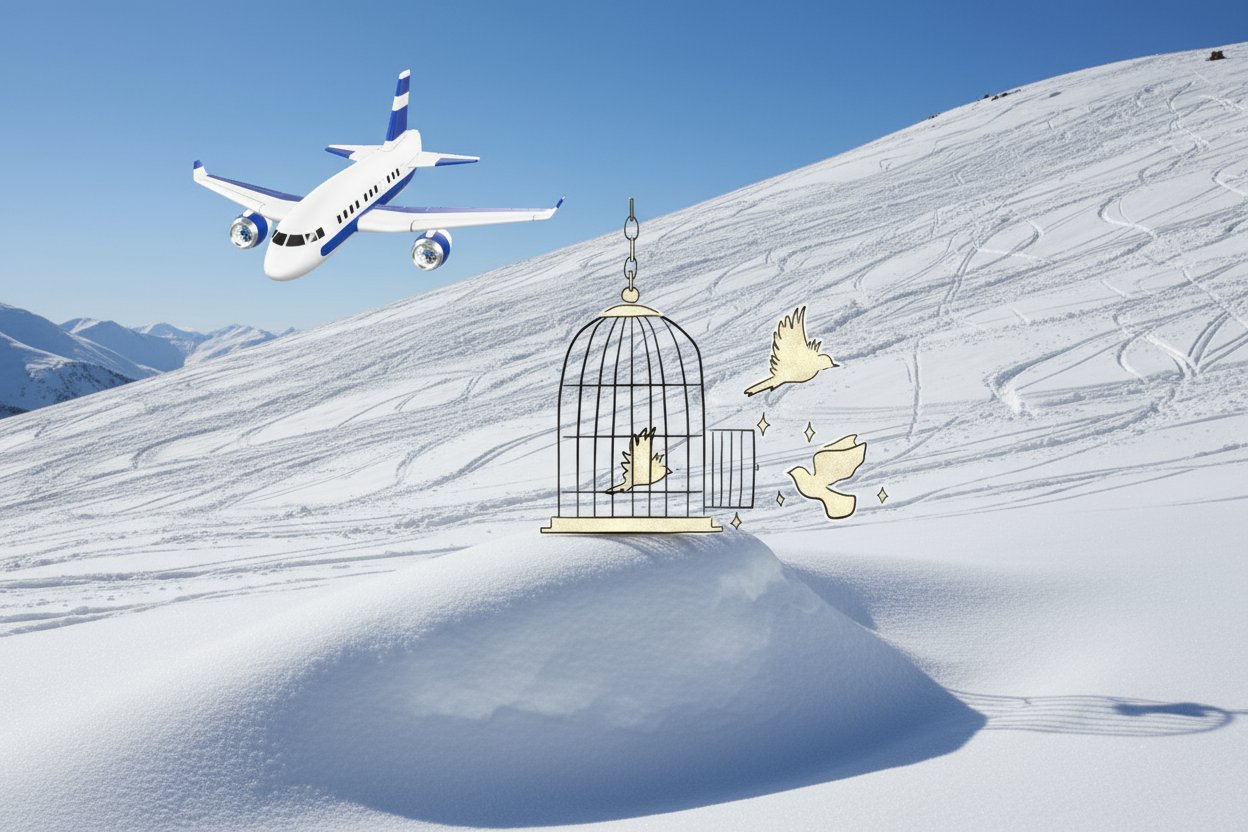
Pass multiple images directly. Save three JPEG inputs asimage1.jpg, image2.jpg, and image3.jpg in your working directory. Nano Banana 2 and Pro support up to 14 reference images:
4K image generation
Specifyimage_config with aspect_ratio and image_size for high-resolution output:
For high-resolution requests, judge the output by the final non-thought image part. If your integration saves the first
inlineData part, it may save an intermediate thought image that is lower resolution than the requested imageSize.Multi-turn image editing (chat)
Use the SDK’s chat feature to iteratively refine images:Tips
Write the prompt
Write the prompt
Specify style keywords (e.g., “cyberpunk, film grain, low contrast”), aspect ratio, subject, background, lighting, and detail level.
Send Base64 image data
Send Base64 image data
When using raw HTTP, do not include
data:image/png;base64, prefix — use only the raw Base64 string. The Python SDK handles this automatically with PIL.Image objects.Request image output
Request image output
Set
"responseModalities" to ["IMAGE"] to request image-only output.Why is my image blurry or lower resolution?
Why is my image blurry or lower resolution?
Check whether your code saved an intermediate thought image. Gemini image responses may include image parts where
thought is true; these are not the final output. Skip thought: true parts and save the last image part where inlineData exists and thought is not true. If you do not need text output, request "responseModalities": ["IMAGE"] to reduce mixed text/image response handling.